Multifactor Authentication (MFA)
JFCU takes the security of your information very seriously. That’s why we require Multifactor Authentication (MFA) as an extra layer of security when you sign in to your account using our Online Banking system and Mobile App.
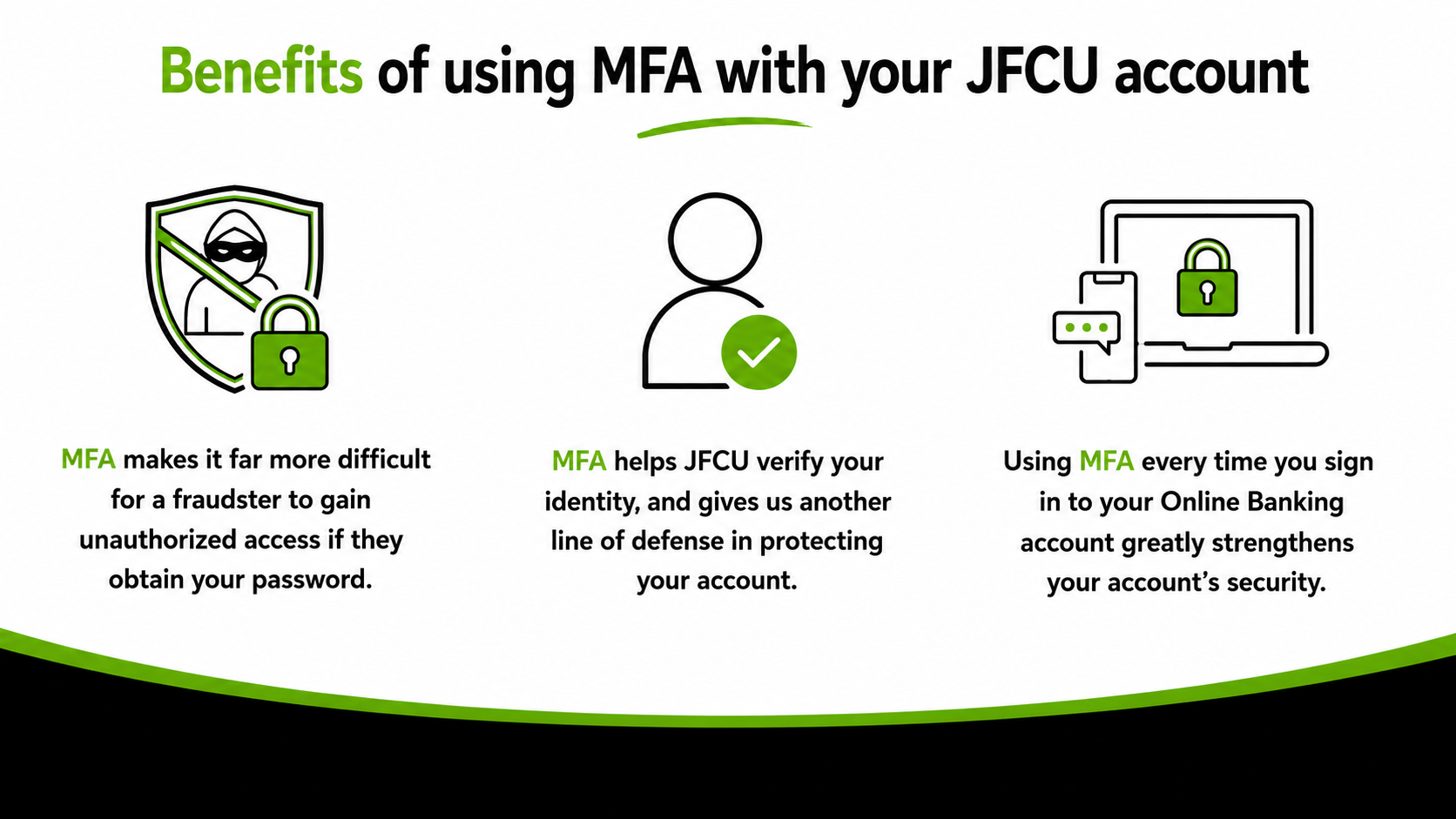
How to Set Up MFA
- Accessing for the First Time: Upon your first login, the system will prompt you for an MFA verification code.
- Receiving the Code: Check your registered phone number or email address for the One-Time Passcode (OTP).
- Entering the Code: Type or paste the verification code into the prompt on your banking screen.
- Registering Your Device: When prompted, you can choose to "remember" your device for six (6) months so you don't have to authenticate every time you log in.
- Managing Authentication Options: Once logged in, you can adjust settings or enable biometrics (Face ID/Fingerprint) via the Settings & Info or Authentication Options menu on your mobile app.
If you’re using a cell phone to activate MFA, you will be presented with two screens upon logging into the Mobile App, similar to what is shown below.
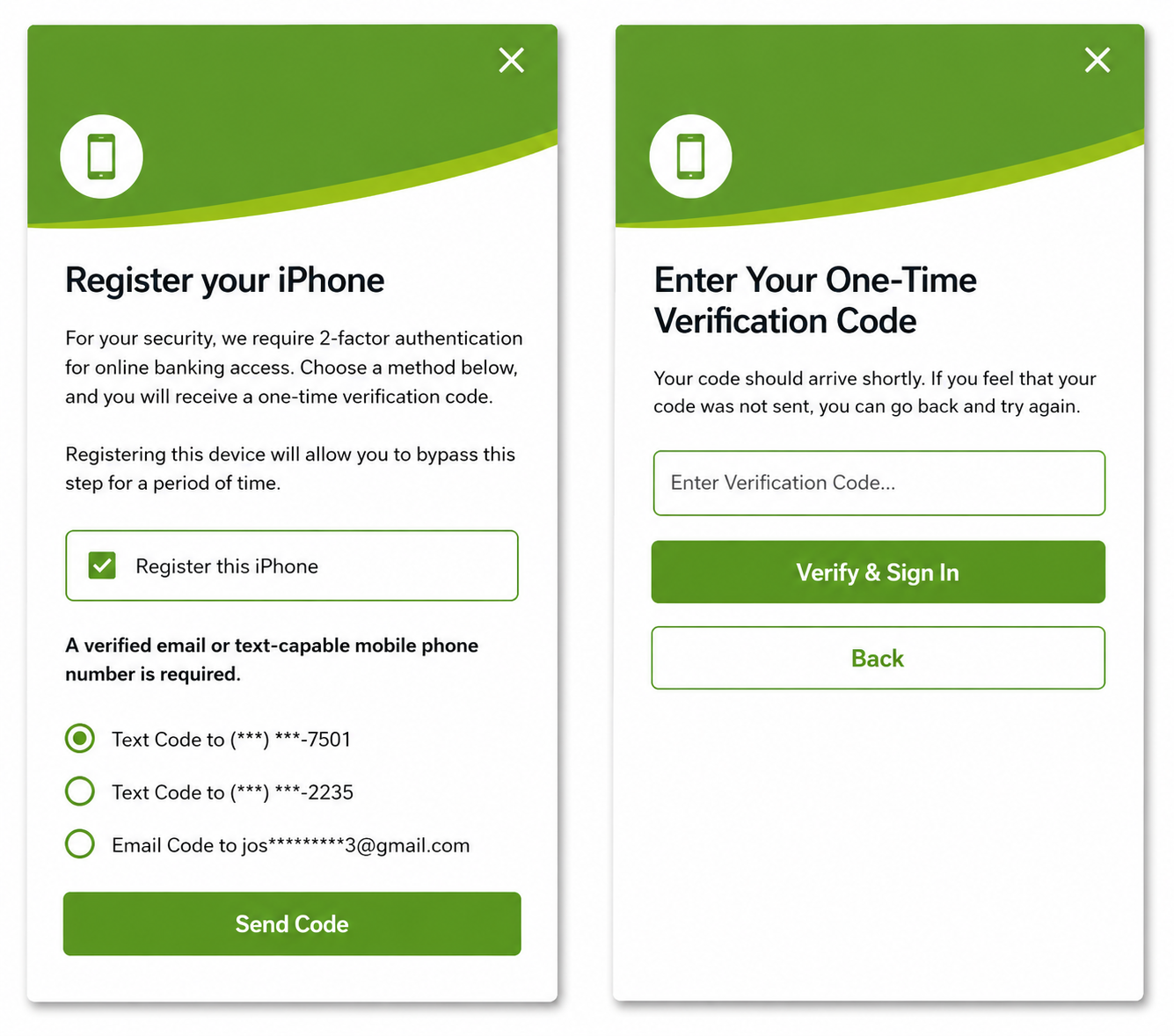
The first page allows you to register your phone or email for the One-Time Passcode (OTP). The second page will prompt you to enter the OTP. If you checked the box to register your device, you will not be presented with the MFA screen again until six (6) months have passed. Please note that if you get a new phone or sign in on another device, you will be prompted to register each device separately.
MFA FAQs
I currently use MACO credentials (voice, fingerprint, photo ID, or custom PIN) with the mobile app. Do I still need to use MFA?
MACO authentication is separate from the one-time passcode and device registration required by MFA. MACO authentication replaces the need to enter a password and security question answer, but it does not replace the need to use MFA to log into online banking.
MFA will become the final step in authentication, regardless of whether a fingerprint, voice, photo ID, or PIN was already entered earlier as part of the same authentication process.
You can also opt to leave the device registration box unchecked, which would set your device to require a one-time passcode each time you log into online banking.
Does MFA mean I can stop answering security questions?
Security question answers are also used for the “forgot password” feature that allows you to reset your password without needing to call us. Because of this, answering a security question each time you log into online banking will be required to ensure that these answers are kept top of mind.
What if the email address and phone numbers presented during multi-factor authentication (MFA) for online banking are wrong?
During MFA authentication at login, the system presents all the phone numbers associated with your membership, including ones flagged as “wrong,” as a double check on the system. It is up to you to pick a number that can receive an MFA code via text message. If none of the information presented is correct, please call us at 989-227-3700 to update your account information.
Go to main navigation